
PDC 3030 - Digital Camera POLAROID - Free user manual and instructions
Find the device manual for free PDC 3030 POLAROID in PDF.


User questions about PDC 3030 POLAROID
0 question about this device. Answer the ones you know or ask your own.
Ask a new question about this device
Download the instructions for your Digital Camera in PDF format for free! Find your manual PDC 3030 - POLAROID and take your electronic device back in hand. On this page are published all the documents necessary for the use of your device. PDC 3030 by POLAROID.
USER MANUAL PDC 3030 POLAROID
- Flash
- Lens
- Self-timer LED
- USB port
- Viewfinder
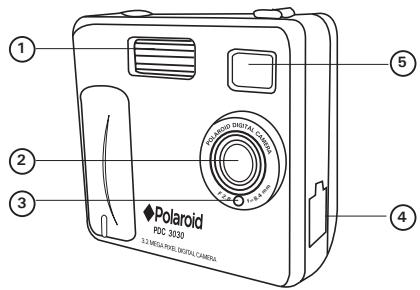

- Status LED
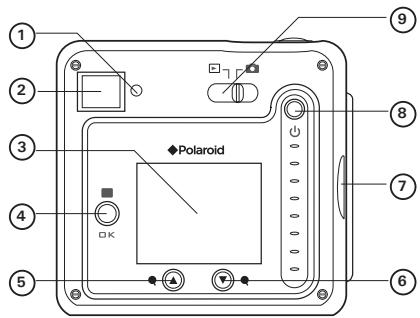
2.Viewfinder - LCD screen
- Menu/OK button
- Up / Zoom out button
- Down / Zoom in button
- SMC slot
- Power button
- Capture/Playback selector
US 2
Polaroid PDC 3030 Digital Camera User Guide
www.polaroid-digital.com
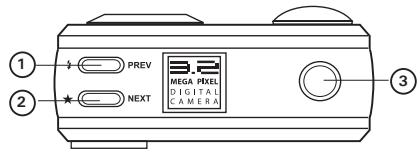
- Flash/Previous button
- Quality/Next button
3.Shutter button
- Battery compartment
- Hand strap holder
- Tripod mount
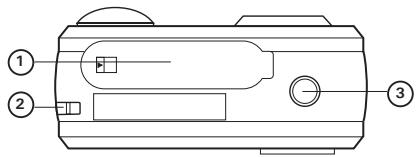
- SMC slot
- Microphone
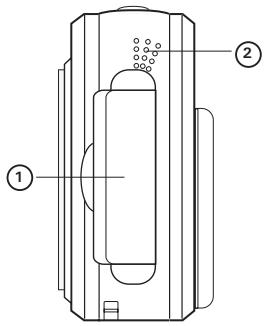

Table of Contents
1 Getting Started 6
What can I do with my Camera? 6
- What can I do with my Digital Pictures? 6
- What can I do with my Audio Clips and Video Clips? 7
- Camera Package Contents 7
- Attaching the Hand Strap 8
- Installing the Batteries 8
- Turning the Camera On and Off 9
- Checking the Battery Level 9
Automatic Power Off Saves Battery 10
2 Camera Setting 11
- Checking Camera Status 11
- Setting the Display Language 12
- Setting Date and Time 13
3 Taking Pictures 14
- Taking a Picture 14
- Setting the Picture Quality 14
- Setting the Picture Size 15
- Setting the Flash Mode. 16
- Zoom in and out 16
- Setting Self-timer 17
- Setting the Date Stamp 18
- Setting the Exposure Compensation 19
- Setting the White Balance 20
- Setting Sharpness 21
- Setting Frequency 22
- Reviewing the Pictures 22
- Zooming the Displayed Picture 22
- Rotate the Displayed Picture 23
- Protecting/Unprotecting the Pictures from Deletion 24
- Deleting One Picture or All Pictures 25
US 4
Polaroid PDC 3030 Digital Camera User Guide
www.polaroid-digital.com


4 Recording Audio and Video Clips 26
- Recording Audio Clips 26
- Recording Video Clips 27
-Playback Video Clips on LCD Screen 27 - Protecting/Unprotecting Audio Clip(s) and Video Clip(s) 28
- Deleting One Audio Clip or Video Clip 30
- Using the SMC (SmartMedia™ Card) 32
- Formatting Memory 34
5 Installing the Software into a Computer 35
- Installing the Software 35
Software included with Your Camera 37 - Computer System Requirements 38
6 Transferring Pictures, Audio and Video Clips To Your Computer .... 39
Before Transferring Pictures 39
- Connecting to Your Computer 39
- Transferring and Viewing the Pictures, Audio Clips and Video Clips on PC. 40
- Transferring and Viewing the Pictures, Audio Clips and Video Clips on MAC 40
7 Using the Camera as a Web Cam 41
- Setting up NetMeeting™ 41
- Start NetMeeting™ 41
8 Troubleshooting Problems 42
9 Getting Help 44
Polaroid-digital Online Services 44
- Customer Support 44
ArcSoft Software Help 44
10 Appendix 45
- Technical Specifications 45
- Capacity of SMC card 46
- Using Your Batteries 47
- Tips, Your Safety & Maintenance 47
- Uninstalling the Camera Driver (PC only) 47
Regulatory Information 48


1 Getting Started
- What can I do with my Camera?
Capture

Enjoy point & shoot operation. Store pictures, audio clips and video clips to the internal memory or a SMC.
Set Up

Select various camera and video recording settings.
Communicate

Use the camera as a web camera.
- What can I do with my Digital Pictures?
View

View pictures on the LCD screen or on a computer using the Arcsoft® software supplied.
Save

Save pictures to the computer memory by Mass Storage interface.
Communicate

Send the pictures over the Internet to family and friends.
US 6
Polaroid PDC 3030 Digital Camera User Guide
www.polaroid-digital.com

- What can I do with my Audio Clips and Video Clips?
Playback

Playback audio clips and video clips on a computer using the Windows Media Player or other Media software supplied.
Save

Save audio clips and video clips to the computer memory by Mass Storage interface.
Communicate

Send the audio clips and video clips over the Internet to family and friends.
- Camera Package Contents
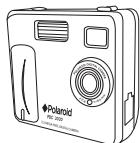
PDC 3030
Registration Card

The CD-ROM includes
Polaroid PDC 3030 Camera (PC)
PhotolmpressionTM 4.0 (PC & Mac)
Microsoft®NetMeeting™ (PC)
Adobe Acrobat Reader (PC & Mac)
User Guide
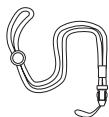
Hand Strap
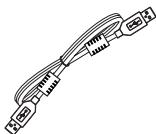
USB Cable
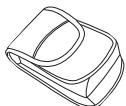
Pouch

4 x AAA Alkaline Batteries


- Attaching the Hand Strap
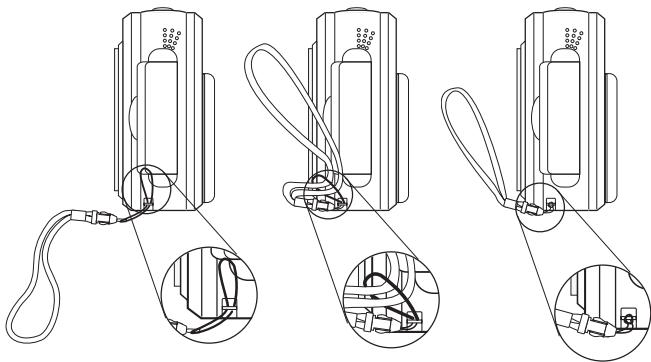
- Installing the Batteries
4 x AAA Alkaline batteries are supplied with the product. For more guidelines on battery usage, please see Using your batteries.
- To open the battery door, slide the button in the direction as shown to release.
- Insert the batteries as shown, ensuring you follow the + / - signs correctly.
- Close the battery door.

US 8
Polaroid PDC 3030 Digital Camera User Guide
www.polaroid-digital.com
- Turning the Camera On and Off
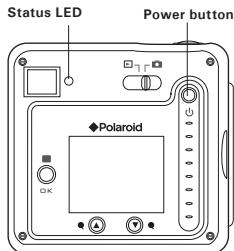
To turn on the camera, fully press and hold the Power button until the Status LED turns green. When LCD screen comes on, the Status LED will be off. Press and hold the Power button again, "Good Bye" will show on the LCD screen and the camera will be off.
- Checking the Battery Level
Check the battery power level before taking pictures.
- Turn on the camera.
- Check the power status level that appears on the camera LCD screen.


Batteries have adequate power.

Batteries need to be replaced.
Automatic Power Off Saves Battery
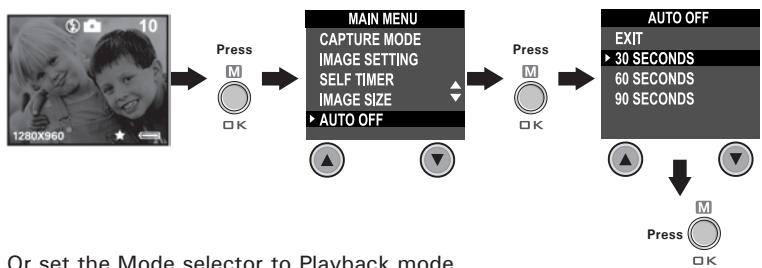
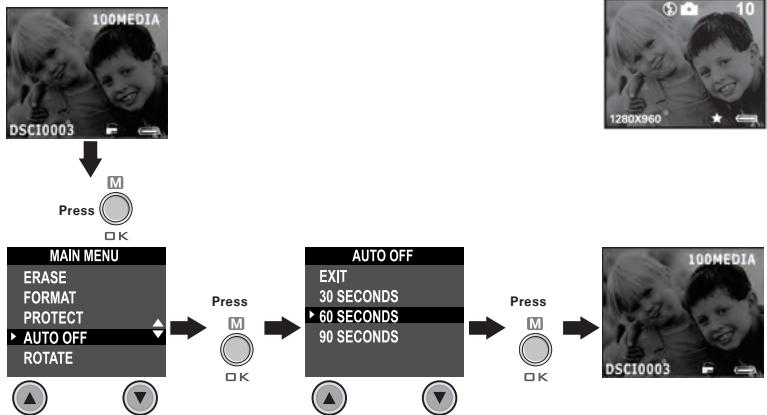
Your camera is designed to switch off automatically after 60 seconds (default setting) of inactivity. You can change the Auto Power Off setting by the following steps:
Turn on the camera, set the Mode selector to Capture mode (the Status LED blinks once).
Or set the Mode selector to Playback mode.
US 10
Polaroid PDC 3030 Digital Camera User Guide
www.polaroid-digital.com


2 Camera Setting
- Checking Camera Status
Turn on the camera, view the camera LCD screen to check which camera settings are active. If feature icon is not displayed, that particular feature is not activated.
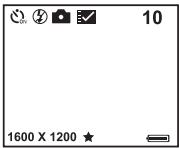
| Picture Quality | Camera Status | Other Features | |
| ★★ Fine Quality | SMC Card inserted | Self-Timer On | |
| ★ Normal Quality | 10 Pictures can be taken | Auto Flash Mode | |
| Image size | Still Picture | Flash Mode On | |
| 2048 X 1536 | Locked file | Flash Mode Off | |
| 1600 X 1200 | Unlocked file | Video Mode | |
| 1280 X 960 | Full | Low | |
| 800 X 600 | Audio Mode | ||

NOTE:
Some settings will remain even after the camera is turned off, e.g. Image Quality/Image Size/Flash Mode/Auto off/Date and time/Date stamp/ Frequency/Display Language settings.

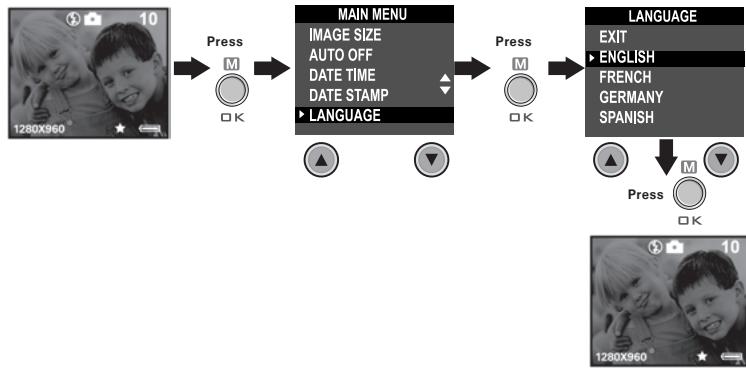
- Setting the Display Language
Under this setting, you can select the language you prefer for the LCD screen.
Turn on the camera, set the Mode selector to Capture mode (the Status LED blinks once).
US 12
Polaroid PDC 3030 Digital Camera User Guide
www.polaroid-digital.com

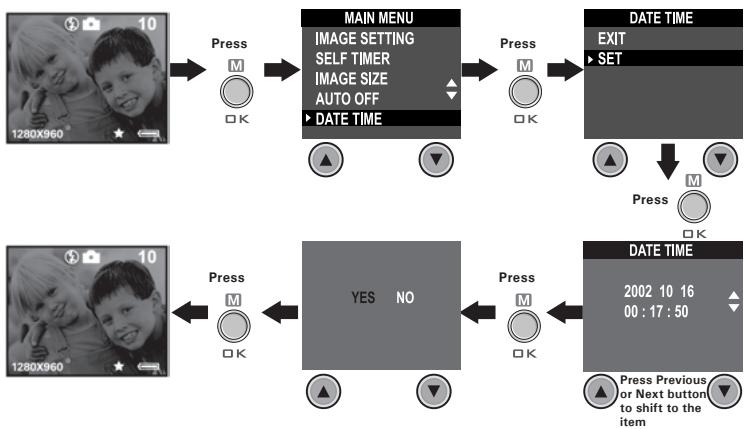
- Setting Date and Time
Turn on the camera, set the Mode selector to Capture mode (the Status LED blinks once). Use Previous or Next button to select a field, such as year, month, day, hour, minute, second. Use the Up or Down buttons to adjust the value in the field. Press the OK button after all fields are set.
3 Taking Pictures
- Taking a Picture
- Turn on the camera.
- Set the Mode selector to Capture mode (the Status LED blinks once).
- Frame your subject using the LCD screen or viewfinder.
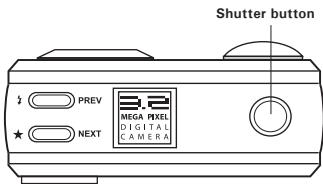
- Press the Shutter button to take a picture. Status LED will be on and a beep will sound. Hold the camera steady until the conclusion of the beep. The end of the beep indicates the picture has been taken.
- Setting the Picture Quality
A digital picture's quality depends on both its resolution and the JPEG file compression that the camera applies when you take the picture. Resolution refers to the number of pixel in a digital picture. Higher resolution and less compression makes better quality which occupies more memory space. Smaller size pictures and normal quality are easier to email while larger size and fine quality are better for printing.
- Turn on the camera.
- Set the Mode selector to Capture mode (the Status LED blinks once).
- Press the Quality button will alter the picture quality setting.

Fine - high resolution and fine quality are good for printing photo.

Normal - low resolution and normal quality are efficient for email or posting to web.
US 14
Polaroid PDC 3030 Digital Camera User Guide
www.polaroid-digital.com


- Setting the Picture Size
Turn on the camera, set the Mode selector to Capture mode (the Status LED blinks once).
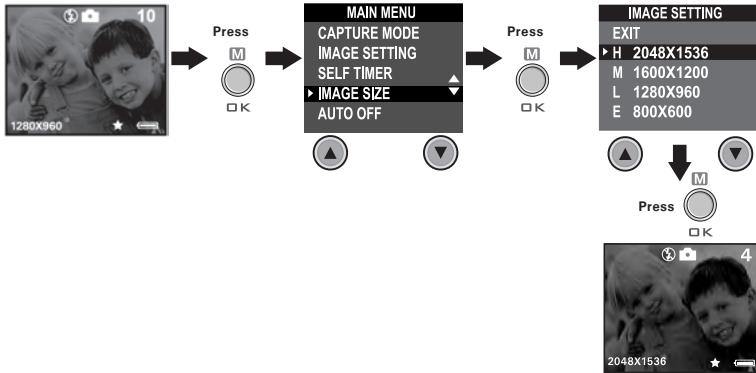
Here are the approximate number of pictures you can expect the camera to hold at each setting based on 8MB internal memory. You can expand the memory with SMC, please refer to Capacity of SMC Card.
H: 2048 X 1536 Fine: Approx. 5 pictures
H: 2048 X 1536 Normal: Approx. 11 pictures
M: 1600 X 1200 Fine: Approx. 9 pictures
M: 1600 X 1200 Normal: Approx. 20 pictures
L: 1280 X 960 Fine: Approx. 14 pictures
L: 1280 X 960 Normal: Approx. 30 pictures
E: 800 X 600 Fine: Approx. 36 pictures
E: 800 X 600 Normal: Approx. 86 pictures
NOTE:
Scene complexity affects a picture's file size. For example, a picture of trees in autumn has a larger file size than a picture of blue sky at the same resolution and quality setting. Therefore, the number of pictures you can store on a memory card may vary. The number of pictures on the LCD screen is for reference only.
Polaroid PDC 3030 Digital Camera User Guide
www.polaroid-digital.com

- Setting the Flash Mode
The Flash Range is approximately 4 feet to 8 feet (1.2 to 2.4 meters).
- Turn on the camera.
- Set the Mode selector to Capture mode (the Status LED blinks once).
- Press Flash button to cycle through the flash mode until the one you want is shown on the LCD screen.
Flash mode on, the flash fires for every picture. Use this setting indoors in low light.
⑤ Flash mode off, the flash does not fire. Use this setting for outdoor pictures or where flash is prohibited or may be distracting. Also use when shooting toward a reflective surface, such as a window or mirror. If you do not have enough light when using this setting, your pictures will be too dark.
Auto Flash mode, the flash fires automatically as needed. Use this setting to take most pictures.
Please note that when flash mode is selected, the Status LED turns green and blinks until the flash finishes charging, then the Status LED will be on until pressing Shutter button to take a picture.
- Zoom in and out
Your camera is designed to have 3X digital Zoom. This feature lets you "zoom" in on the central area of a photo and photograph only the enlarged portion of the picture. Digital zoom applies to only one photo at a time. To Zoom in and out the picture, press Down/Up button.

NOTE:
This feature is available in Capture and Playback mode.
US 16
Polaroid PDC 3030 Digital Camera User Guide
www.polaroid-digital.com
- Setting Self-timer
Your camera is designed with a self-timer function which will allow you to take picture with the 10 seconds build in timer.
1 Turn on the camera.
2 Set the Mode selector to Capture mode (the Status LED blinks once).
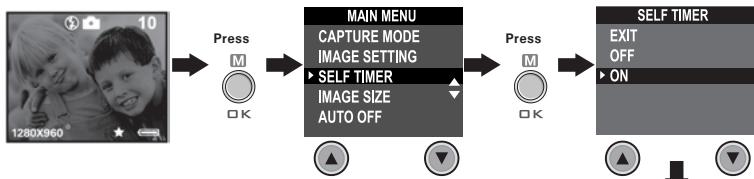
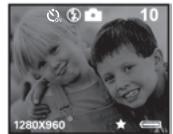
The icon appears on LCD screen. Press Shutter button to perform self-timer. A timer appears in the center of LCD screen and the camera beeps indicating self-timer is activating.

NOTE:
Self-timer feature is only applied to next picture. When self-timer is activated, status LED turns green, while the self-timer LED turns red and blinks slowly for 8 seconds, then blinks quickly for 2 seconds before the picture is taken. Please place the camera on a flat surface or use a tripod.


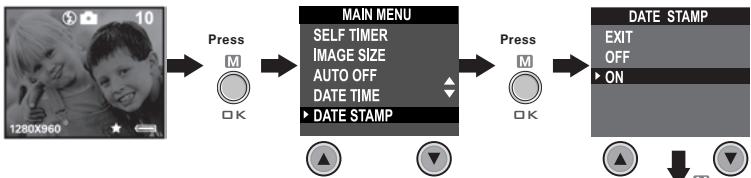
- Setting the Date Stamp
Turn on the camera, set the Mode selector to Capture mode (the Status LED blinks once).
Press


OK

US 18
Polaroid PDC 3030 Digital Camera User Guide
www.polaroid-digital.com

- Setting the Exposure Compensation
Turn on the camera, set the Mode selector to Capture mode (the Status LED blinks once).
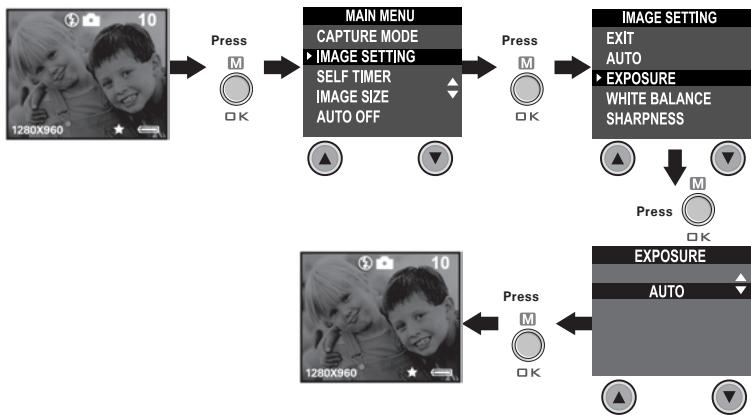
You can adjust the exposure compensation value (EV) within the range of -1.5EV to +1.5EV in order to compensate for current lighting conditions. This setting can be used to obtain better result when shooting with backlighting, indirect indoor lighting, a dark background, etc.

NOTE:
- A higher EV value is best used for light-colored subjects and backlit subjects. A lower EV value is best for dark-colored subjects and for shooting outdoors on a clear day.
- When shooting under very dark or very bright conditions, you may not be able to obtain satisfactory results even after performing exposure compensation.
- Exposure compensation returns to its standard default setting (AUTO) after you turn off and turn on the camera again.

- Setting the White Balance
Selecting the right type of white balance can help to make the colors of a subject appear more natural under the type of lighting that is available. Turn on the camera, set the Mode selector to Capture mode (the Status LED blinks once).
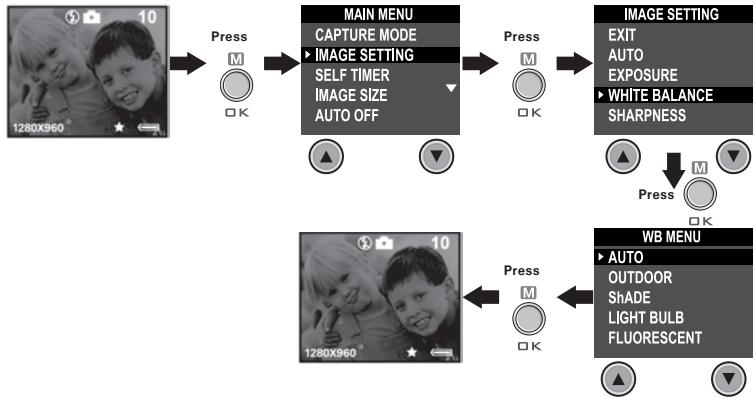

NOTE:
White balance returns to its default setting (AUTO) after you turn off the camera and turn it on again.
US 20
Polaroid PDC 3030 Digital Camera User Guide
www.polaroid-digital.com
- Setting Sharpness
Use the Sharpness setting to highlight or blend the edges of the subject in pictures.
Turn on the camera, set the Mode selector to Capture mode (the Status LED blinks once).
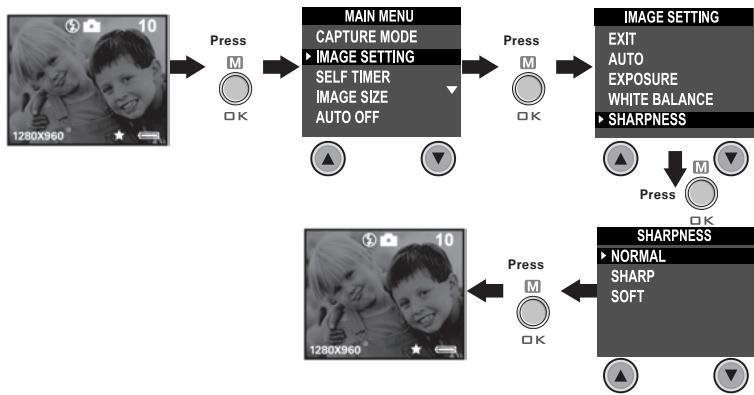
Normal Use when no special effect is needed. Ideal for everyday pictures.
Sharp Increases contrast on the edges of the picture. Ideal when you want to improve the clarity of an picture, or if you later may want to crop or cut out specific areas in the picture.
Soft Softens the edges of the picture, creating a "soft focus" effect.
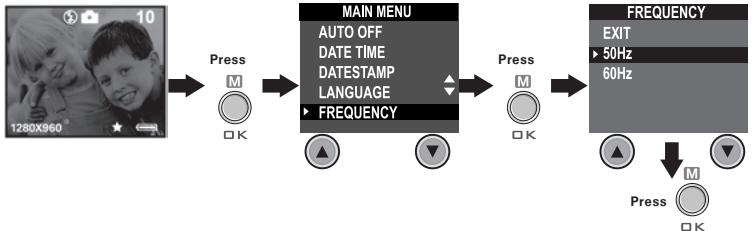
- Setting Frequency
In order to take a better indoor picture, the camera needs to be set to suit the lighting frequency, for US, set the frequency to 60Hz, for Europe, set the frequency to 50Hz.
Turn on the camera, set the Mode selector to Capture mode (the Status LED blinks once).
- Reviewing the Pictures
- Turn on the camera.
- Set the Mode selector to Playback mode (the Status LED blinks once).
- Press Previous and Next button to view the pictures taken.
- Zooming the Displayed Picture
- Turn on the camera.
- Set the Mode selector to Playback mode (the Status LED blinks once).
- Press Down button to zoom in.
- Press Up button to zoom out.
US 22
Polaroid PDC 3030 Digital Camera User Guide
www.polaroid-digital.com

- Rotate the Displayed Picture
This function enables you to view the picture taken at a better angle.
Turn on the camera, set the Mode selector to Playback mode (the Status LED blinks once).
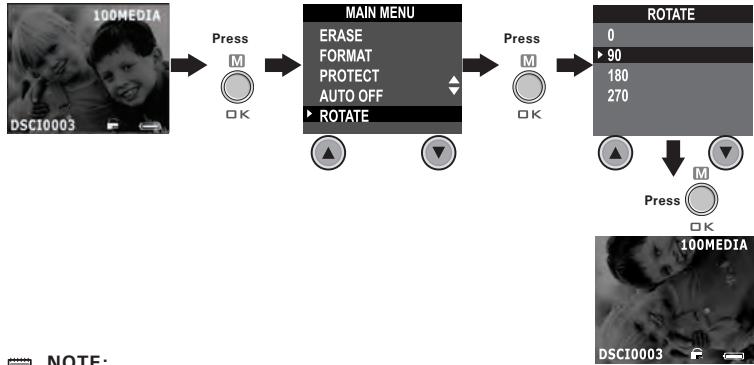
NOTE:
This function only keeps the picture rotated while the camera is on. The picture will return to its original angle after the camera is turned off.
- Protecting/Unprotecting the Pictures from Deletion
Following the steps below to protect a picture:
Turn on the camera, set the Mode selector to Playback mode (the Status LED blinks once).
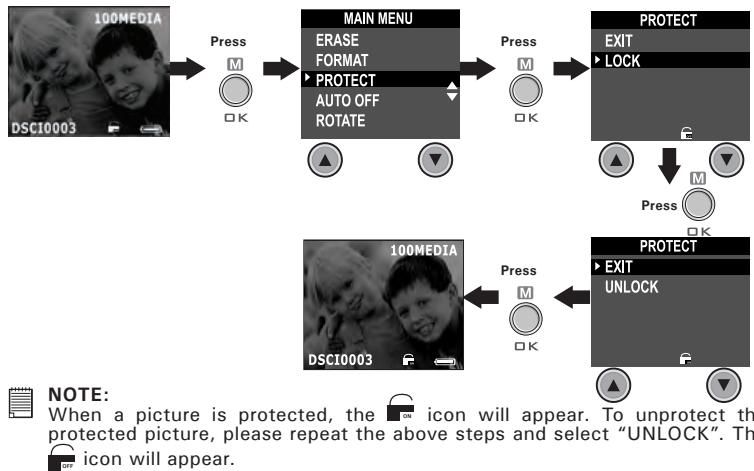
US 24
Polaroid PDC 3030 Digital Camera User Guide
www.polaroid-digital.com
- Deleting One Picture or All Pictures
Following the steps below to delete one picture:
Turn on the camera, set the Mode selector to Playback mode (the Status
LED blinks once).
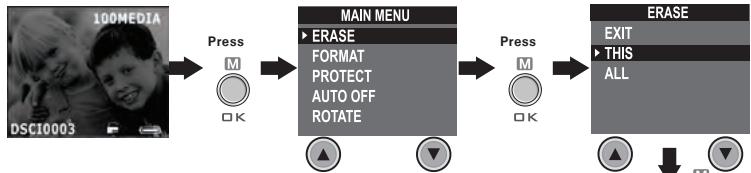
NOTE:
- The protected file(s) can not be deleted.
- To delete all the pictures, please repeat the above steps and select "ALL". All unprotected files (pictures, audio and video clips) in the current memory will be deleted.

4 Recording Audio and Video Clips
- Recording Audio Clips
- Turn on the camera, set the Mode selector to Capture mode (the Status LED blinks once).
- Set the camera to Audio mode by the following steps.
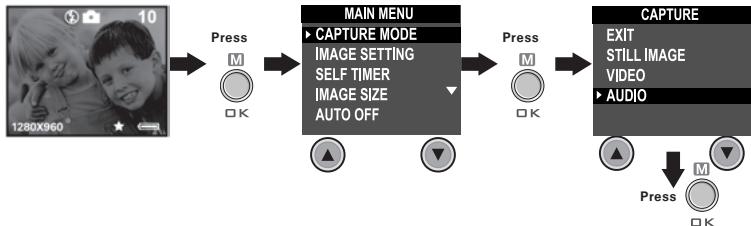
- Press Shutter button to start, if you want to stop, press the Shutter button again. Please note that recording time displays on LCD screen.

US 26
Polaroid PDC 3030 Digital Camera User Guide
www.polaroid-digital.com

- Recording Video Clips
- Turn on the camera, set the Mode selector to Capture mode (the Status LED blinks once).
- Set the camera to Video mode by the following steps.
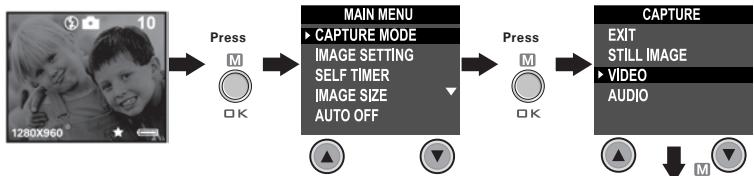
- Frame your subject using the LCD screen.
- Press Shutter button to start, if you want to stop, press the Shutter button again.

NOTE:
The recording time displays on the LCD screen will increase and the status LED turns green while recording video clip.

- Playback Video Clips on LCD Screen

IMPORTANT!
Audio clips can only be played in PC/MAC when connected to the computer. Please refer to Transferring Pictures, Audio and Video Clips to Your Computer for further detail.
- Turn on the camera.
- Set the Mode selector to Playback mode (the Status LED blinks once).
- Press Previous and Next button to select the video clip you want to playback.
- The LCD screen shows "PLAY AVI? YES NO", use Up or Down button to select "YES" and press OK button to play the video clip. Press OK button again to stop playback.

NOTE:
There is no sound during video playback as it has no built-in speaker.

- Protecting/Unprotecting Audio Clip(s) and Video Clip(s) Following the steps below to protect an Audio Clip:
- Turn on the camera.
- Set the Mode selector to Playback mode (the Status LED blinks once).
- Use Previous or Next button to select the audio clip you want to protect.
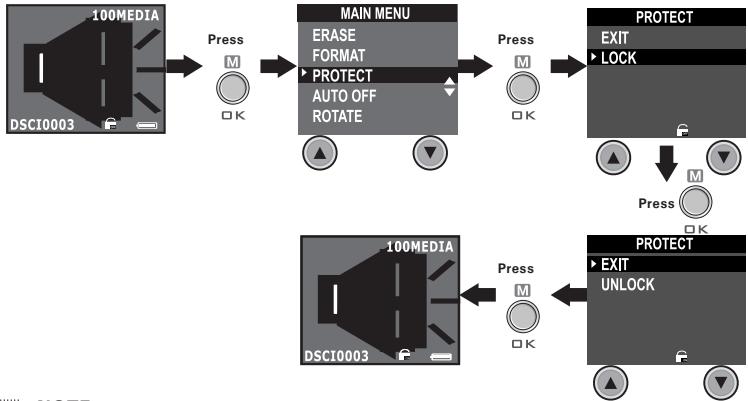

NOTE:
When an Audio clip is protected, the icon will appear. To unprotected the protected Audio clip, please repeat the above steps and select "UNLOCK". The icon will appear.
US 28
Polaroid PDC 3030 Digital Camera User Guide
www.polaroid-digital.com
Following the steps below to protect a Video Clip:
- Turn on the camera.
- Set the Mode selector to Playback mode (the Status LED blinks once).
- Use Previous or Next button to select the video clip you want to protect.
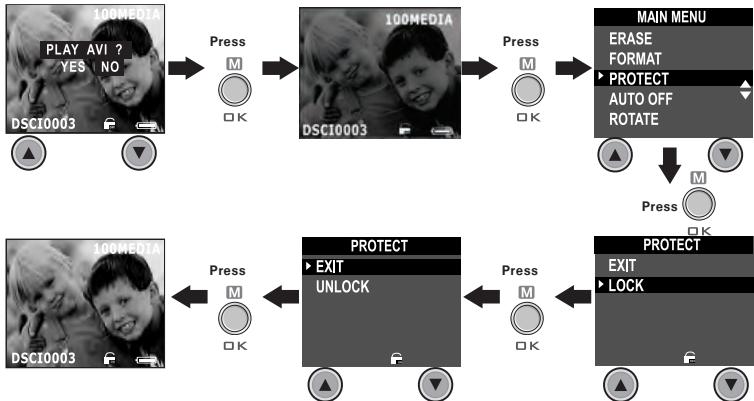

NOTE:
When a Video clip is protected, the icon will appear. To unprotected the protected Video clip, please repeat the above steps and select "UNLOCK". The icon will appear.
- Deleting One Audio Clip or Video Clip - Deleting One Audio Clip
- Turn on the camera.
- Set the Mode selector to Playback mode (the Status LED blinks once).
- Use Previous or Next button to select the video clip you want to delete.
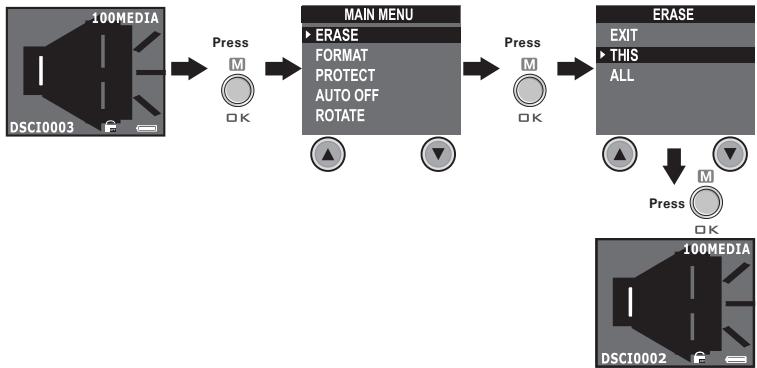
NOTE: The
- The protected file(s) can not be deleted.
- Please note that selecting "ALL" will delete all unprotected files (pictures, audio and video clips) in the current memory.
US 30
Polaroid PDC 3030 Digital Camera User Guide
www.polaroid-digital.com

Deleting One Video Clip
- Turn on the camera.
- Set the Mode selector to Playback mode (the Status LED blinks once).
- Use Previous or Next button to select the audio clip you want to delete.
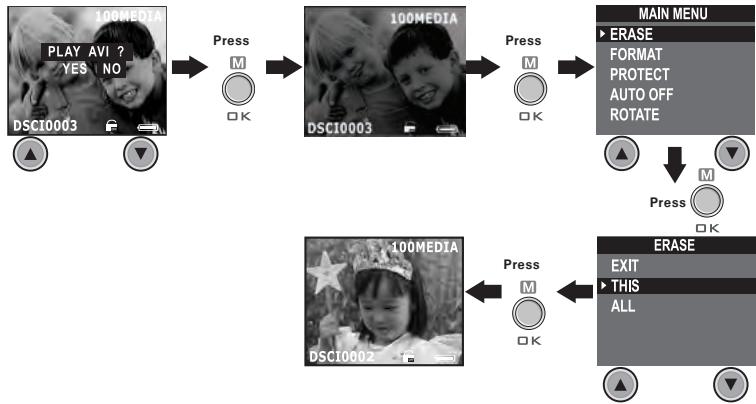
NOTE:
- The protected file(s) can not be deleted.
- Please note that selecting "ALL" will delete all unprotected files (pictures, audio and video clips) in the current memory.

- Using the SMC (SmartMedia™ Card)
Your camera comes with 8MB of built-in Nand flash memory for storing pictures, audio clips and video clips as you record them. You can expand the memory using a commercially available SMC (up to 128MB). The camera senses whether a memory card is inserted, and automatically saves pictures, audio clips or video clips accordingly. Note that you cannot save pictures, audio clips or video clips to the built-in Nand flash memory while a memory card is installed in the camera.

IMPORTANT!
- Files contained in the SMC card recorded by other cameras may conflict with the PDC 3030 camera, and valuable data in your existing SMC card may be distorted or lost when the card is inserted in the PDC 3030 camera. We strongly recommend the user to use a NEW or formatted SMC card for the SMC camera. We will not guarantee any valuable data or files (other than PDC 3030 camera's) in your SMC card.
- Make sure you turn off the camera before inserting or removing a memory card.
- Be sure to orient the card correctly when inserting it. Never try to force a memory card into the slot when you feel resistance.
Memory card precautions:
- Use only a SMC memory card with this camera. Proper operation is not guaranteed when any other type of card is used.
- Electrostatic charge, electrical noise, and other phenomena can cause data corruption or even loss. Always make sure that you always back up important data on other media (MO disc, computer hard drive, etc.).
- If a memory card starts to behave abnormally, you can restore normal operation by formatting it. However, we recommend that you always take along with you more than one memory card whenever using the camera far away from your home or office.
- We recommend that you format a memory card when using it for the first time, or whenever the card you are using seems to be the cause of abnormal pictures. Remember to format a memory card if it was used in another digital camera or other devices.
US 32
Polaroid PDC 3030 Digital Camera User Guide
www.polaroid-digital.com


Inserting a SMC (not included)
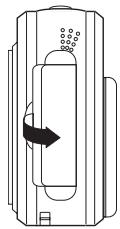
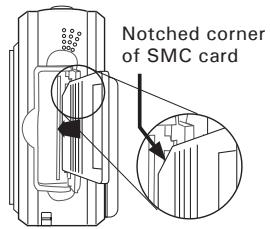
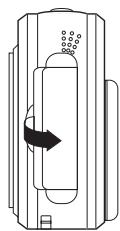
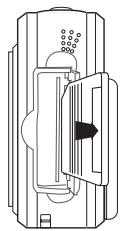
Turn off the camera and open the SMC slot cover as illustrated. Insert the SMC ensuring the card is inserted the correct position as illustrated. On the inner side of the SMC slot cover, there is a diagram showing the proper insertion orientation.
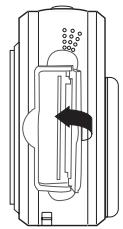

NOTE:
The camera will turn off automatically if you insert the SMC card while the camera is turned on.
Removing the SMC (not included)
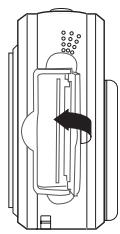
To remove the SMC, turn off your camera, open the SMC slot cover, gently push the SMC inwards and then release it for the SMC to eject. Take the SMC out and close the card slot cover.
Polaroid PDC 3030 Digital Camera User Guide
US 33
www.polaroid-digital.com


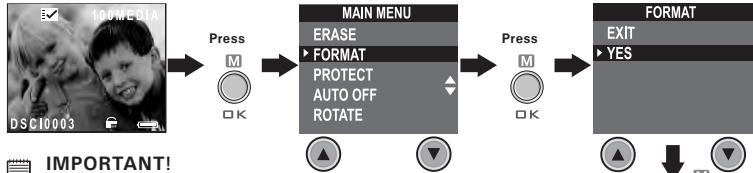
- Formatting Memory
Turn on the camera, set the Mode selector to Playback mode

IMPORTANT!
- Formatting the internal memory and a SMC erases all the pictures, audio and video clips, including protected ones.
- You can format a memory card on the camera or on a computer. However formatting a memory card on a computer takes much longer.
Note that data deleted by a format operation can not be recovered. Make sure you do not have any useful data currently stored on a memory card before you format it.

5 Installing the Software into a Computer
- Installing the Software
For Windows® Users:
PC
IMPORTANT! (For Windows® 98SE)
On Windows® 98SE Mass Storage function needs to install the PDC 3030 Driver.
IMPORTANT! (For Windows® ME, 2000, XP)
Directly plug-in the camera to transfer and play the pictures, video clips or audio clips, no need to install the driver, but if you want to use NetMeeting™ function, please install the driver first.
IMPORTANT! - If the computer requests you to install the Windows® operating system during the software installation, place the Windows® CD into the computer CD-ROM drive. The computer will install the necessary files from the CD automatically. When the Windows® software appears to have finished the operation, close the Windows® screen. Remove the Windows® CD and store safely.
NOTE:
Microsoft® NetMeeting™ is already bundled with Windows® 2000 and XP OS. Users using Windows® 2000 or XP do not need to install this software from the CD-ROM.

- Before you begin, close all other software applications open on your computer.
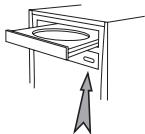
- Insert the CD supplied into the computer CD-ROM Drive.
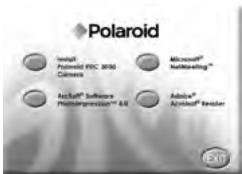
- The CD User Interface Screen will automatically launch.
- With the mouse, click on each software interface button in turn and follow the on screen instructions.
NOTE:
If the setup screen doesn't appear after loading the CD, then you can manually start it by double-clicking the "My Computer" icon on your desktop, then double-clicking the icon for the CD-ROM drive. When the CD-ROM window opens, double-click the "INSTALL-E.EXE" icon.
Open & Close
For Macintosh® Users:
MAC
- Before you begin, close all other software applications opened on your computer.
- Insert the CD supplied into the computer CD-ROM Drive.
- Double click the CD-ROM icon "Polaroid".
- Install the software included.
US 36
Polaroid PDC 3030 Digital Camera User Guide
www.polaroid-digital.com

- Software included with Your Camera
PDC 3030 Driver Plug & Play removable disk
Easy to use, just plug the camera to a computer and use it as a removable disk. Use the Arcsoft® software suite to edit and print the Pictures.
ArcSoft Photolmpression™ 4.0 Picture Editing Software
ArcSoft Photolmpression™ is an easy to use digital video and image-editing program. This program enables users to upload still image and movie clips store in your camera. You could also edit and retouch your photos, then add special effects or place them in cards, calendars, frames and fantasy templates. ArcSoft Photolmpression™ also includes a wide variety of printing options.
Microsoft®NetMeeting™ Web Cam software
NetMeeting™ provides the most complete conferencing solution for the Internet and corporate intranet. Powerful features let you communicate with both audio and video, collaborate on virtually any Windows-based application, exchange graphics on an electronic whiteboard, transfer files, use the text-based chat program, and much more. Using your PC and the Internet, you can now hold face-to-face conversations with friends and family around the world.
Adobe Acrobat Reader .PDF File Reading Software
Adobe Acrobat Reader lets you view and print Adobe Portable Document format (PDF) files on all major computer platforms, as well as fill in and submit Adobe PDF forms online.
Computer System Requirements
For acceptable picture transfer and editing performance, we recommend the following minimum requirements;
For Windows® Users
PC
- Compatible with Microsoft® Windows® 98SE, Me, 2000 or XP
- Pentium® II 333MHz or equivalent processor
- 64MB RAM (128MB recommended)
- USB Port
- 200MB free disk space
Color monitor with high color (16-bit) graphic capability or higher - CD-ROM drive
- Standard mouse and keyboard
- Stereo speakers
For Macintosh® Users
MAC
- PowerPC® Processor
- Mas OS Version 9.2~X
- USB Port
- 64MB RAM (128MB recommended)
150MB Free disk space
Color monitor with high color (16-bit) graphic capability or higher - CD-ROM drive
- Standard mouse and keyboard
- Stereo speakers
US 38
Polaroid PDC 3030 Digital Camera User Guide
www.polaroid-digital.com


6 Transferring Pictures, Audio and Video Clips To Your Computer
Before Transferring Pictures

IMPORTANT! -
Before you transfer your pictures make sure you have installed the software from the CD.
For Windows® and Macintosh® Users:
PC
MAC
- Connecting to Your Computer
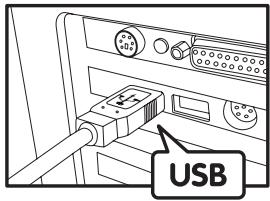
Connecting with the USB Cable.
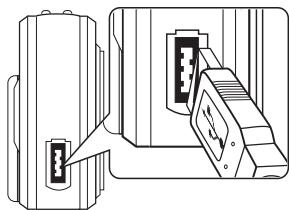
- Turn on the camera.
- Plug the labelled end of the USB cable into the socket marked on your computer.
- Plug the other end of the USB cable into the port on your camera.

- Transferring and Viewing the Pictures, Audio Clips and Video Clips on PC
- Turn on the camera
- Set the camera to Playback mode.
- Connect the camera to a computer via the USB cable.
- Open the Windows Explorer and then you can see a "Removable Disk" drive.
- Double click "Removable Disk" -> double click "DCIM"-> double click "100MEDIA".
- All the pictures, video clips and audio clips are in the "100MEDIA" folder. Highlight the pictures, video clips or audio clips and drag them to a folder of your choice. You can also create sub-folders to group them or use the Arcsoft software to edit and manage the pictures or video / audio clips.
For Macintosh® Users:
MAC
- Transferring and Viewing the Pictures, Audio Clips and Video Clips on Mac

NOTE:
For MAC user, directly plug-in the camera, no need to install the driver.
-
Turn on the camera
-
Set the camera to Playback mode.
-
Connect the camera with MAC via USB cable, the systems will automatically recognize the MASS STORAGE drive named "untitled".

NOTE:
This Drive name will be varied from different versions of MAC OS system.
- Double click the folder "untitled" to enter sub folder "DCIM".
- Double click the folder "DCIM" to enter sub folder "100MEDIA".
- You can copy the pictures, audio clips and video clips from this folder "100MEDIA" and paste to the hard disk.
US 40
Polaroid PDC 3030 Digital Camera User Guide
www.polaroid-digital.com

7 Using the Camera as a Web Cam
- Setting up NetMeeting™
NOTE: Set the camera to Capture mode before starting NetMeeting™.
- Connect your PDC 3030 to the USB cable on one end.
- Connect the USB cable to a USB port on your PC on the other end.
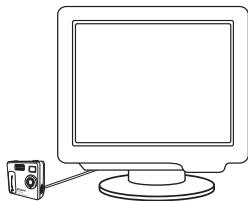
- Put your PDC 3030 on top of your PC monitor or another flat surface.
- Connect your Microphone and your Speaker to your audio card's Mic in jack and Speaker out jack respectively.
- Start NetMeeting™
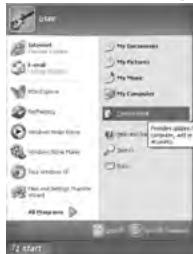
NOTE: For Windows® XP / 2000 users who use NetMeeting™ for the first time, Go to Start -> Run -> type in "conf" -> click "OK" and then follow the on-screen set up instruction to set up NetMeeting™.
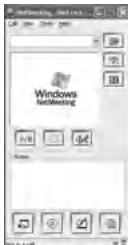
- Double click the "NetMeeting" icon on the desktop or select the "NetMeeting" icon from the Windows® Start Menu.
- If you need further help on how to use Microsoft® NetMeeting™, select the "Help" under the menu bar and choose the topic you need. You can also refer to the Polaroid "EASY TO USE GUIDE TO MICROSOFT® NETMEETING™" or visit the website: http://www.microsoft.comindows/netmeeting.
Polaroid PDC 3030 Digital Camera User Guide
www.polaroid-digital.com
US 41

8 Troubleshooting Problems
The troubleshooting guide is designed to help you. If problems continue, please contact your local customer support hot-line. See your registration card for help line contact details.
| Symptom | Problem | Solution |
| I receive an error message when I am installing "PDC 3030 Camera Driver". | "PDC 3030 Camera Driver" does not load. | Shut down all other applications and attempt to reinstall the driver. |
| Check the USB controller in your BIOS if they are activated. If these do not work, contact your national customer support representative. | ||
| I cannot upload images to the PC. | Connection failure or the camera is not set to Capture Mode. | Check all cable connections are secured or set the camera to Playback Mode. |
| The camera is set to the Capture mode. | Set the camera to Playback mode. | |
| I cannot run the PDC 3030 Camera Driver. | Conflict with another camera driver capture device. | If you have any other camera installed on your computer, remove the camera and its driver completely from your system to avoid conflict with PDC 3030. |
| I cannot upload the images from the internal memory of the PDC 3030 camera to PC. | The SMC card is inserted inside the SMC card slot. | The memory card has a higher priority than the internal memory for image storage, image transfer or deletion. |
| I cannot switch on my PDC 3030 Camera after inserting a SMC card. | The SMC card is not inserted all the way in or card slot door is not closed properly. | Make sure the SMC card is inserted all the way in and close the slot door properly. |
| I press the shutter button but no response. | The PDC 3030 camera is processing data. Or The internal memory or SMC card memory is full. | Wait for this process to complete. Or Delete some images in the internal memory of the camera or SMC. |
US 42
Polaroid PDC 3030 Digital Camera User Guide
www.polaroid-digital.com


| Symptom | Problem | Solution |
| The Flash icon and the image counter on the LCD is flashing after I took my last image using the Flash Mode. | The PDC 3030 Camera is processing the image and recharging the flash unit. | Wait for the flash icon on the status LCD to stop flashing and then take another image. |
| I get a blurred image when uploading my images to my computer. | There may be a momentary delay between pressing the shutter button and the actual exposure. | Hold your PDC 3030 camera steadily until you hear a "beep" which indicates the exposure is completed. |
| The battery indicator icon on the 1.4" LCD screen will go "blank". | This means there is insufficient power. | You need to change the new batteries. |
| My image quality is grainy. | You may have selected the wrong camera frequency setting. | Using the different frequency setting. Pal for 50 Hz NTSC for 60 Hz |
| My CD installation wizard does not work. | The auto installation file is switched to off. Or The CD ROM is disconnected. | Go to the computer desktop, Right click on "My Computer". Click "Properties". Select "Device Manager". Double click on "CD-ROM", double click on "CD-R" (Normally the manufacturer's name). Click on "Setting". Ensure "Auto insert notification" is ticked and the "disconnect" is ticked. If you change the settings the computer will ask you to restart your PC. Click "Yes" (Only for Windows® 98SE & ME user) |
| The LCD on my PDC 3030 Camera has frozen when you insert a SMC card into your PDC 3030 camera. | No response from any of the function buttons. | Ensure you only use a new or formatted SMC card for use with your PDC 3030 camera. |
| No web camera function. | The camera is set to Playback mode Or Have not installed the PDC 3030 Driver. | Set the camera to Capture mode Or Install the PDC 3030 Driver. |
Please also refer to the help files & User Guide that accompany the enclosed applications. For further information and support, please visit our website: http://www.polaroid-digital.com.
Polaroid PDC 3030 Digital Camera User Guide
www.polaroid-digital.com


9 Getting Help
- Polaroid-digital Online Services
Website: http://www.polaroid-digital.com
- Customer support

Questions? Need Help?
Call us at 1-888-235-0808
Monday thru Friday, 10 am - 7 pm EST and
Sat 10 am - 4 pm EST
Or visit us at http://www.polaroid-digital.com
ArcSoft Software Help For North America
ArcSoft HQ Support Center
(Fremont California, CA)
Tel: 1-800-762-8657
(toll free number)
Fax: 1-510-440-1270
E-mail: support@arcsoft.com
For China
ArcSoft China Support Center (Beijing)
Tel: 8610-6849-1368
Fax: 8610-6849-1367
E-mail:china@arcsoft.com
For South & Central America
Tel: 1-510-979 + 5520
Fax: 1-510-440-1270
E-mail:latlnsupport@arcsoft.com
For Oceania
ArcSoft Australian Support Center
(Baulkham Hills, New South Wales)
Tel: 61 (2) 9899-5888
Fax: 61 (2) 9899-5728
E-mail: support@supportgroup.com.au
For Japan
ArcSoft Japan Support Center (Tokyo)
Tel: +81-03-3834-5256
Fax: +81-03-5816-4730
Web: http://www.mds2000.co.jp/arcsoft
E-mail: japan@arsoft.com and support@mds2000.com
For Europe/Middle East/
Africa & Rest of the World
ArcSoft Europe Support Center (Ireland)
Tel: +353-(0) 61-702087
Fax: +353-(0) 61-702001
E-mail: europe@arcsoft.com
Visit http://www.arcsoft.com for technical support and frequently asked questions (FAQ's).
US 44
Polaroid PDC 3030 Digital Camera User Guide
www.polaroid-digital.com


10 Appendix
- Technical Specifications
- Internal Memory: 8MB NAND FLASH
- External Memory: support SMC memory card up to 128MB (not included)
-
Still Picture Resolution (based on 8 MB internal memory):
-
Fine quality - 2048 x1536 pixel -Approx. 5 pictures
1600 x 1200 pixel -Approx. 9 pictures
1280 x 960 pixel -Approx. 14 pictures
800 x 600 pixel -Approx. 36 pictures
- Normal quality - 2048 x1536 pixel -Approx. 11 pictures
1600 x 1200 pixel -Approx. 20 pictures
1280 x 960pixel -Approx. 30 pictures
800 x 600 pixel -Approx. 86 pictures
Video Clip:
- Unlimited when connected to the computer via video capture software
- Limited when using the 8MB internal memory: Approximately 1.5 minutes in CIF mode 10fps @ 320 X 240 pixel
Using SMC card:
16 M - Approx. 3 minutes
32 M - Approx. 8 minutes
64 M - Approx. 16 minutes
128 M - Approx. 32 minutes
Audio Clip:
8KHZ, 4bit, Approximately 30 minutes based on 8MB internal memory
-
File Format:
-
Still Picture - Compression in JPEG format after download to PC via USB (depend on application used)
Video Clip -AVI format
Audio Clip - WAV format -
External Connector: USB, SMC slot
-
Auto Power Off: After 30, 60, or 90 seconds inactivity
Power Supply: USB Port, 4 X AAA batteries
- Operating System:
For Windows® Users: Microsoft® Windows® 98SE, Me, 2000 or XP
For Macintosh® Users: Mac OS 9.2~X
Polaroid PDC 3030 Digital Camera User Guide
US 45
www.polaroid-digital.com


Capacity of SMC Card
| SMC Card | Fine quality pictures can be taken | Normal quality pictures can be taken | |
| 16M | High (2048x1536) | 9 | 23 |
| Middle (1600x1200) | 18 | 41 | |
| Low (1280x960) | 28 | 60 | |
| Economic (800x600) | 72 | 172 | |
| 32M | High (2048x1536) | 19 | 48 |
| Middle (1600x1200) | 37 | 84 | |
| Low (1280x960) | 57 | 122 | |
| Economic (800x600) | 145 | 346 | |
| 64M | High (2048x1536) | 39 | 98 |
| Middle (1600x1200) | 75 | 170 | |
| Low (1280x960) | 115 | 246 | |
| Economic (800x600) | 291 | 694 | |
| 128M | High (2048x1536) | 79 | 198 |
| Middle (1600x1200) | 151 | 342 | |
| Low (1280x960) | 231 | 494 | |
| Economic (800x600) | 583 | 1390 | |

NOTE:
Scene complexity affects a picture's file size. For example, a picture of trees in autumn has a larger file size than a picture of blue sky at the same resolution and quality setting. Therefore, the number of pictures you can store on a card may vary.
US 46
Polaroid PDC 3030 Digital Camera User Guide
www.polaroid-digital.com
- Using Your Batteries Warnings!
- Batteries should be replaced by an adult.
- Do not mix different types of batteries or new and used batteries.
- Use recommended or equivalent type of batteries only.
- Insert the batteries with the correct polarity.
- Remove exhausted batteries from the camera immediately.
- Do not short the supply terminals.
- Do not dispose the batteries in fire.
- Remove batteries from the camera when not in use. These instructions should be retained for future reference.
- Tips, Your Safety & Maintenance
Your Camera should only be operated within the following environmental conditions;
32 - 104° Fahrenheit; 0 - 40° Celsius
- 20% - 85% relative humidity, non condensing
Battery life or image quality may be affected outside these conditions


Camera Cautions
- NEVER immerse any part of the Camera or its accessories into any fluid or liquid.
- ALWAYS disconnect the Camera from your PC or TV before cleaning it.
- ALWAYS remove dust or stains with a soft cloth dampened with water or neutral detergent.
- NEVER place hot items on the surface of the Camera.
- NEVER attempt to open or disassemble Camera as this will affect any warranty claim.
- Uninstalling the Camera Driver (PC only)
- Unplug the camera from the computer.
- Go to Start -> Setting -> Control Panel.
- Double click Add / Remove Programs.
- In Add / Remove Programs, select "Polaroid Digital Cam" and click the Remove button.
- Restart the computer.
Polaroid PDC 3030 Digital Camera User Guide
www.polaroid-digital.com
US 47
Regulatory Information FCC Notice
This device complies with Part 15 of FCC Rules. Operation is subject to the following two conditions: (1) This device may not cause harmful interference, and (2) This device must accept any interference received, including interference that may cause undesired operation.
Warning: Changes or modifications to this unit not expressly approved by the party responsible for compliance could void the user's authority to operate the equipment.
NOTE: This equipment has been tested and found to comply with the limits for Class B digital device, pursuant to Part 15 of the FCC Rules. These limits are designed to provide reasonable protection against harmful interference in a residential installation. This equipment generates, uses and can radiate radio frequency energy and, if not installed and used in accordance with the instructions, may cause harmful interference to radio communications.
However, there is no guarantee that interference will not occur in a particular installation. If this equipment does cause harmful interference to radio or television reception, which can be determined by turning the equipment off and on, the user is encouraged to try to correct the interference by one or more of the following measures:
- Reorient or relocate the receiving antenna.
- Increase the separation between the equipment and receiver.
- Connect the equipment into an outlet on a circuit different from that to which the receiver is needed.
- Consult the dealer or an experienced radio/TV technician for help.
Shielded cable must be used with this unit to ensure compliance with the Class B FCC limits.
Under the environment with electrostatic discharge, the product may malfunction and require user to reset the product.
US 48
Polaroid PDC 3030 Digital Camera User Guide
www.polaroid-digital.com


Polaroid
PDC 3030
ArcSoft HQ Support Center
(Fremont California, CA)
Tel: 1-800-762-8657
(número Gratis)
Fax: 1-510-440-1270
E-mail: support@arcsoft.com
ArcSoft China Support Center (Beijing)
Tel: 8610-6849-1368
Fax: 8610-6849-1367
E-mail:china@arcsoft.com
Japon
ArcSoft Japan Support Center (Tokyo)
Tel: +81-03-3834-5256
Fax: +81-03-5816-4730
Web: http://www.mds2000.co.jp/arcsoft
E-mail: japan@arsoft.com and support@mds2000.com
Oceania
ArcSoft Australian Support Center
(Baulkham Hills, New South Wales)
Tel: 61 (2) 9899-5888
Fax: 61 (2) 9899-5728
E-mail: support@supportgroup.com.au
ArcSoft Europe Support Center (Ireland)
Tel: +353-(0) 61-702087
Fax: +353-(0) 61-702001
E-mail: europe@arcsoft.com
La duración de las pilas o la calidad deImagenSEOSEOSEOSEOSEOSEOSEOSEOSEOSEOSEOSEOSEOSEOSEOSEOSEOSEOSEOSEOSEOSEOSEOSEOSEOSEOSEOSEOSEOSEOSEOSEOSEOSEOSEOSEOSEOSEOSEOSEOSEOSEOSEOSEOSEOSEOSEOSEOSEOSEOSEOSEOSEOSEOSEOSEOSEOSEOSEOSEOSEOSEOSEOSEOSEOSEOSEOSEOSEOSEOSEOSEOSEOSEOSEOSEOSEOSEOSEOSEOSEOSEOSEOSEOSEOSEOSEOSEOSEOSEOSEOSEOSEOSEOSEOSEOSEOSEOSEOSEO SEO

